PRIVACY
Home-screen web app vs Safari tab: cookies, logins and storage
Why a home-screen web app can be logged out or hold different files than Safari: what iOS copies at install, what stays separate, and what it means for privacy.
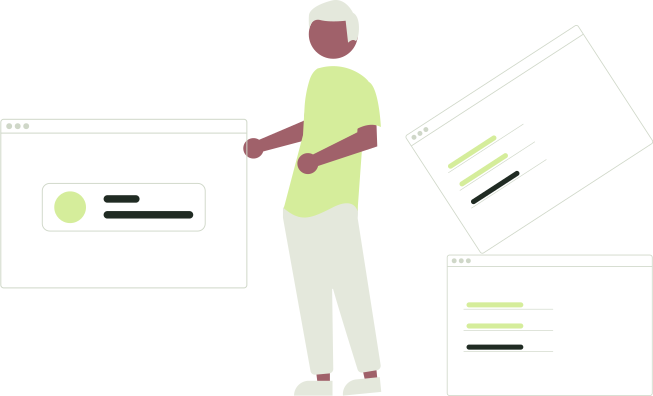
When you add a website to your iPhone home screen as a web app, iOS opens it in its own window with its own cookies and website storage, separate from Safari. WebKit, Safari's engine, documents the split: when you tap Add to Home Screen, the site's current cookies are copied into the new app, and after that no other website data is shared. The separation is good for privacy, but it is not secrecy.
Why does the same site behave differently as an icon?
A Safari tab and a home-screen web app load the same address; the difference is where your phone keeps the site's data. MDN describes an installed web app as a standalone window, without the address bar or back button, that still runs inside a browser. Apple's guide has you turn on Open as Web App before you tap Add; the icon then opens the website like an app.
The storage is what makes it separate. WebKit's notes for Safari 17.2 say that when you create a web app this way, the cookies are copied over, including the login state, but only if the login is stored in cookies; no other local storage is copied, and once the app is added, no other website data is shared. WebKit describes the copy as new in iOS 17.2, so an app added earlier, or from a tab where you were logged out, had nothing useful to copy.
If tapping the icon opens a Safari tab instead, you have a bookmark rather than a web app; Add a website to your iPhone home screen: setup and fixes explains why. If web app and PWA are new words, start with What is a PWA?.
What is shared and what is not?
| Safari tab | Home-screen web app | |
|---|---|---|
| Cookies and logins | Safari's cookies for the site | Copied once when you add the app, if the login is kept in cookies; separate afterwards |
| Website storage and saved files | Safari's storage for the site | Not copied; the app starts empty and keeps its own |
| History | Pages appear in Safari's History | None of its own; not part of Safari's, though Apple does not spell this out |
| Downloads | Saved to the Files app, as Apple documents | Not documented by Apple; with PWA Lock's vault on, downloads go to the vault |
| Notifications and badges | Not offered to tabs, as WebKit describes it | Since iOS 16.4, after you tap to allow them |
| Address bar | Shows the address, which you can edit | None |
| Private Browsing | Available; private tabs stay out of History | No equivalent that Apple documents |
Cookies cross over once and never again, and storage never does. If a site keeps you signed in with something other than a cookie, the installed app starts signed out; sign in once inside it, and from then on signing out in Safari does not sign out the app. A file that exists in one place and not the other is likewise expected, not a fault. Why a website login may fail inside a web-app wrapper covers the sites where the login step itself misbehaves.
What does this mean for your privacy?
The benefit is compartments: the installed app cannot read Safari's cookies for the site, a Safari tab cannot read the app's storage, and what you do in the app is not listed among your tabs or in History. Apple's Private Browsing page treats History as a Safari feature, and WebKit says no website data is shared with the app after it is added; neither says outright that the app's pages stay out of Safari's History, so expect it, but do not count on it.
The mistake is to read separate as secret. It is not:
- The website sees everything you do in it, in either window, and keeps whatever it normally keeps.
- The network sees the connection: whoever runs your Wi-Fi, and your carrier, can see which servers your phone talks to.
- Anyone holding your unlocked phone can tap the icon, and if the site keeps you signed in, it opens straight into your account.
The compartments keep one window's data from the other; they do nothing about who picks up the phone. That is the job of the passcode and, for an extra step before one app opens, of Apple's Face ID lock for apps or a separate password lock such as PWA Lock's. PWA Lock's makers wrote this article, so take that as a pointer, not a verdict; iPhone app locks, private browsing and PWA Lock compared weighs the options. Apple does not say whether its app lock covers home-screen web apps, so check your own phone.
Can a home-screen web app send notifications?
Yes, since iOS 16.4; as WebKit describes it, this is a feature of home-screen web apps rather than of Safari tabs. The app can ask for permission only after a direct action of yours, such as tapping a subscribe button. Once allowed, WebKit says the notifications work exactly like other apps': they appear on the Lock Screen and in Notification Center, follow your Focus settings, and can put a badge count on the icon.
For privacy, remember that a notification previews the app's activity on your Lock Screen for anyone who glances at the phone.
How much can it store, and can that data disappear?
WebKit's storage policy post covers what a site keeps through local storage, IndexedDB, the Cache API, service workers and the file system API; cookies are outside it. One site may use up to 60% of the disk in a browser app, and a home-screen web app gets the same quota as in a browser.
WebKit deletes a site's data as a whole, least recently used first, when the overall quota is exceeded, when the system is short of space, or when a site has gone unused for a long time. Every site starts in best-effort mode, so nothing is guaranteed to stay; a site can ask for persistent mode, and WebKit grants it using heuristics such as whether the site is opened as a home-screen web app. That makes the installed app a safer home for local data than a tab, not a safe one.
The unused-site rule differs too: WebKit's tracking prevention deletes a site's script-writable storage after seven days of Safari use without interacting with that site, but home-screen web apps are not part of Safari, count their own days of use, and WebKit does not expect their own data to be deleted this way.
None of this is a backup: clearing website data removes the storage, eviction can remove it, and Apple does not document what deleting the icon does to it or whether an iPhone backup includes it. Anything you would miss needs a copy elsewhere; Before clearing website data: protect your local web-app files explains how.
What does this mean for a PWA Lock app?
PWA Lock gives a web app a locked copy at its own address, which the setup guide has you add to your home screen. iOS then treats it like any other home-screen web app:
- The first launch may ask for your account login. Its cookies are its own, so it may not know you are logged in to pwalock.com even if Safari does. Log in once; the login lasts 7 days on that device, and the lock page appears.
- The unlock belongs to one window. Unlocking in a Safari tab does not unlock the installed app, or the other way round, because the unlock is kept in that window's own cookies and session storage.
- The vault lives inside the app. With a vault passcode set, downloads made inside the app are saved to the app's origin-private file storage on that device, so files saved from the installed app are not visible when you open the same locked address in Safari, and the reverse. PWA Lock does not encrypt them or back them up anywhere, and clearing website data deletes them.
- Relocking uses the browser's visibility signals. The page script listens for the Page Visibility API events that say the page has been hidden, waits a moment so a passing system sheet does not count, then ends the unlock; the next tap shows the cover again. An unlock also expires after 15 minutes.
The step-by-step version is Set up PWA Lock on your iPhone: the complete guide. The gate is at the locked address only; the original website stays reachable at its own address for anyone who knows it and has its login.
Frequently asked questions
Why is the home-screen version of a site logged out when Safari is logged in?
Because the installed app has its own cookies. WebKit documents that when you add a web app to the home screen, the cookies present at that moment are copied over, and only if the login is kept in cookies; nothing else is copied, and nothing is shared afterwards. If the site keeps you signed in another way, or you signed in to Safari after adding the app, the app starts signed out. Sign in once inside it and the two stay independent from then on.
Does clearing Safari history and website data also clear a home-screen web app?
Apple's instructions cover Safari; they do not say what the control does to an installed web app, and WebKit describes the two as holding separate website data. Do not rely on either outcome. If the app holds files or drafts you care about, export them before you clear anything, and treat any clearing of website data as able to remove them.
Do pages I open in a home-screen web app appear in Safari History?
Not the way tabs do. The installed app has no History view, and WebKit says no website data is shared with Safari after the app is added, although Apple does not state this outcome in so many words. It is not hidden either: the website records your activity, the network sees the connection, and anyone with your unlocked phone can open the icon.
Can a home-screen web app send me notifications?
Yes. WebKit added web push and badges for home-screen web apps in iOS 16.4. The app can only ask for permission in response to something you do, such as tapping a subscribe button. Once allowed, its notifications appear on the Lock Screen, in Notification Center and on a paired Apple Watch, and follow your Focus settings. As WebKit describes it, ordinary Safari tabs on iPhone do not get this.
If I delete the icon, is the app data gone too?
Treat it as gone. MDN says removing the icon from the home screen deletes the web app; neither Apple nor WebKit documents what happens to its stored data, and nothing you saved there was ever copied to Safari. Export anything you would miss before removing the icon. Adding the site again creates a new, empty app that receives only the cookies present at that moment.
Is a PWA Lock app treated differently from other home-screen web apps?
No. iOS gives it the same separate cookies and storage as any web app you add. That is why the first launch may ask for your pwalock.com login, why an unlock in Safari does not unlock the installed app, and why the vault is a per-app, per-device store. PWA Lock adds the lock page, the relock when the app is hidden and the vault; the separation itself comes from iOS.
Sources
TRY IT WITH YOUR OWN APP
Give the app you open most its own locked front door.
Starter covers 2 apps, each with its own lock page and installable address, and starts with a 14-day free trial: the card is saved at checkout and first charged when the trial ends; cancel before then and you pay nothing.
14 days free on every plan. Then Starter is $4 a month billed yearly ($48 a year), or $5 a month, for 2 locked apps. Your card is saved at checkout and first charged when the trial ends; cancel before then and you pay nothing.
KEEP READING
Related articles
Guides · 7 min read
Add a website to your iPhone home screen: setup and fixes
The Safari steps to add any website to your iPhone home screen as a web app, what changes once it is installed, and fixes for the usual problems.
Guides · 7 min read
What is a PWA? A plain-language guide for iPhone users
What a progressive web app is, how to install one on an iPhone from Safari, what it can and cannot do, and how it differs from a bookmark or an App Store app.
Privacy · 7 min read
Before clearing website data: protect your local web-app files
Clearing Safari website data or deleting a home-screen web app also deletes the files kept inside it, including a PWA Lock vault. What to save first, and how.