PRODUCT
Cover apps: what a calculator on your home screen can hide
What a PWA Lock cover app is, what each of the seven covers really does, how the cover passcode is entered and recorded, and what a cover can and cannot hide.
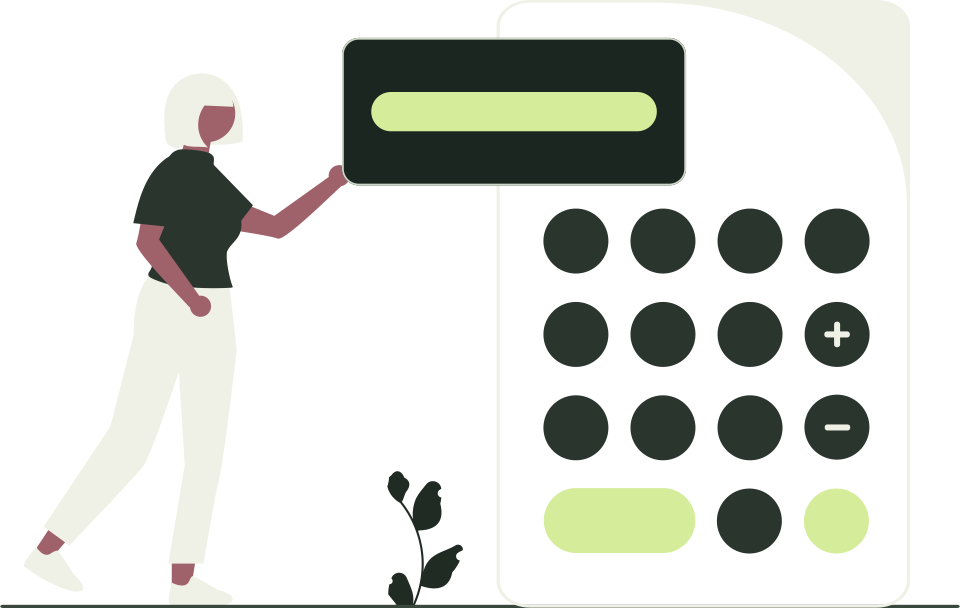
A cover app is a small, genuinely working app that PWA Lock shows on an app's lock page instead of a password field: a calculator, a game of 2048, a weather app, a clock, a timer, tic-tac-toe or a piano. Perform a short passcode on it, such as typing 2048= on the calculator, and the password field appears. Installed on your iPhone home screen, the app carries the cover's icon, so a glance shows a calculator rather than a padlock. That is the idea, and also its limit: a cover is a courtesy against a glance, not a security feature. The lock password does the protecting. We make PWA Lock; this is the makers' own account of how the covers work, what each one really does, and where they stop.
How does a cover work?
Every app you add to PWA Lock gets its own address on pwalock.com and a lock page there. With the plain lock, that page is a password field. With a cover, the page is the cover, and the password field is not on it at all until the passcode has been performed; then the page switches to the password view, you enter the lock password, and the web app loads.
PWA Lock relocks the app whenever it is hidden and after 15 minutes, so you repeat that sequence on every reopen. The setup guide covers creating the app; this article is about choosing the cover.
What do the seven covers actually do?
| Cover | What it really does | What it remembers between opens | How the passcode is entered (default) |
|---|---|---|---|
| Calculator | Arithmetic, percent, sign change and backspace; keeps the last 20 calculations | The display, a pending operation and the history | Tap keys: digits, operators, = and C. Default 2048= |
| 2048 | The sliding-tile game, played by swiping | Board, score and best score | Tap cells, numbered 0 to 15 from the top left, row by row. Default 0,3,12,15, the four corners. Taps do not move tiles |
| Weather | Seven-day forecasts for a searched city or your location, in °C or °F | Place, unit and the last forecast | Tap day chips; 0 is today, 6 the last day. Default 0,6,0 |
| Clock | Live clock and date, 12- or 24-hour, a choice of time zones | Format and time zone | Tap hour marks. Default 12,3,6,9 |
| Timer | Countdown with presets from 1 to 30 minutes or a custom duration; pause, resume, reset | Duration and, while running, the deadline; keeps counting while suspended | Tap presets, in minutes. Default 5,10,5. Each tap also sets the duration |
| Tic-tac-toe | Play the computer or a friend; win and draw totals | Board, mode and totals | Tap cells, numbered 0 to 8 from the top left. Default 0,2,6,8, the four corners. A free cell also plays a move; taken cells still count |
| Piano | An octave of playable keys; volume, octave and sustain controls | Volume, octave and sustain | Tap white keys (C D E F G A B C). Default C,E,G,C. Black keys play but do not count |
Two covers make sound: the Piano when you play it, and the Timer when it finishes, though only while the page is open after you tapped Start; there is no system alarm once the app is closed. Weather asks for your location only when you tap Use my location; searching for a city never does.
How does the passcode work, and how do you choose one?
A cover passcode is a sequence of taps on the cover's keys, cells, chips, hour marks or presets (or typed characters on a computer keyboard). Pause for longer than about two and a half seconds, or make a wrong step, and the sequence starts over. When the last step matches, the cover gives way to the password field.
Each cover has a default, listed in the table, which applies if you leave the passcode empty. To set your own, open Cover & vault sequences on the Add an app form and choose Record passcode: a live copy of the cover opens, you perform the steps, and Use sequence saves them. Manual edit lets you type a comma-separated list such as 7,7,3,9 instead. Up to 120 characters are allowed, but three to six steps your thumb can do without thinking is about right.
Two practical points. The Calculator keeps whatever is on its display, so after 2048= the next open shows 2048 until you clear it; a sequence ending in C leaves it at 0. And do not reuse a PIN or anything you would mind being known: the passcode is not a secret in any strong sense, as the next section explains.
What can a cover not do?
It helps to be blunt here, because a cover looks more protective than it is.
- Anyone who recognizes PWA Lock can skip it. On a device where your account is logged in, the locked address followed by /__lock/login?unlock=1 shows the password field directly. It is also how you get in if you forget your own passcode.
- The passcode is visible to the browser. The lock page carries it so the cover can recognize it, and anyone who views the page source can read it; our privacy policy says patterns are stored as settings, not encrypted secrets.
- Only the lock password protects the app. It is checked on PWA Lock's servers, must be 8 to 128 characters, and repeated wrong attempts are made to wait. Make it long and different from your account password.
- It does not hide the name or the address. The name you chose is the label under the icon and the page title, and the address ends in pwalock.com.
- It does not hide that the app exists, and it does nothing at the original website, which stays reachable at its own address for anyone with its login.
Protection against someone holding your unlocked phone is a job for the phone's own locks, not for a cover. iPhone app locks, private browsing and PWA Lock compared sets the options side by side, and What PWA Lock protects, and what it does not draws the full boundary.
Do covers work offline, and where do they keep their state?
Yes. The lock page registers a service worker, the browser mechanism that lets a web app answer requests without a network (MDN describes it in the sources below). It caches the cover code and remembers which cover the app uses, so when the address cannot be reached the icon still opens the same cover with its saved state. It never caches the password form, unlock tokens, the vault or any page of the app itself, so unlocking always needs a connection.
A cover's memory lives in the browser's local storage for that app's address, on that device, and is not synced between devices. Three consequences:
- Each app has its own cover state; two apps with a Calculator cover have two separate histories.
- A home-screen web app has its own storage, separate from Safari (see WebKit's Safari 17.2 notes below), so the 2048 board you built in Safari is not the one in the installed app. Home-screen web app vs Safari tab explains the split.
- Clearing website data resets every cover, and browsers may evict storage they consider unused. If storage is blocked, the cover shows Changes cannot be saved in this browser and works without memory.
Weather is the one cover that talks to a server. Forecasts come from MET Norway through PWA Lock's own server, which rounds the coordinates to two decimal places and makes the request itself, so the forecast provider sees PWA Lock's connection rather than your phone's; city search uses a place database on the same server. Offline, the cover shows the saved forecast, labeled as saved.
Which cover fits your home screen?
There is no best cover, only one that suits how you use the phone.
- Pick something you would plausibly keep. You will perform the passcode on every reopen, so a cover you might actually use, a timer or a calculator, wears better than one you never touch.
- Name the app for the label, not the site. The name appears under the icon and becomes the address, so it must be unique across PWA Lock; plain names like Calculator may be taken, and a variation works as well.
- Know what the icon looks like. The icons are PWA Lock's own, adapted from open-source icon sets, not copies of Apple's; a Calculator cover next to the built-in Calculator looks like a second calculator, not a duplicate. The plain lock gets a padlock.
- You can mix. Each app has its own cover, so several locked apps can look like several different utilities. Set up separate locks for several iPhone web apps covers the multi-app setup.
Decide with some care: the cover and the passcode cannot be changed from the dashboard yet, only by creating a new app or writing to contact@pwalock.com.
Frequently asked questions
Is the cover a real app or just a picture?
A real app. Each cover works as you would expect: the calculator calculates and keeps a history, 2048 saves your board and best score, the timer keeps counting while the page is suspended, and the weather cover fetches seven-day forecasts. Their state is saved in the browser on that device and comes back the next time the lock page opens.
What if I forget my cover passcode?
Open the locked address followed by /__lock/login?unlock=1 and the password field appears without the cover. If you never set a passcode, the default for your cover applies: 2048= for the Calculator, 0,3,12,15 for 2048, 0,6,0 for Weather, 12,3,6,9 for Clock, 5,10,5 for Timer, 0,2,6,8 for Tic-tac-toe and C,E,G,C for Piano.
Can someone reach the password field without knowing the passcode?
Yes. On a device where your account is logged in, anyone who recognizes PWA Lock can open the locked address followed by /__lock/login?unlock=1. The passcode itself is written into the lock page so the cover can recognize it, which means it can be read from the page's source. Treat the cover as a courtesy against a glance. The lock password, checked on PWA Lock's servers, is the only real protection.
Do cover apps work without an internet connection?
Yes. The lock page installs a service worker that caches the cover code and remembers which cover the app uses, so the icon still opens the same cover, with its saved state, when the address cannot be reached. Unlocking always needs a connection, because the password is checked on the server. The Weather cover shows its saved forecast offline; new searches and refreshes wait for a connection.
Can the cover also open the vault?
Yes, if you set a vault passcode when creating the app. Performing that separate sequence on the same cover opens the vault page instead of the password field. The lock password is still required there: the vault passcode is a shortcut to the vault page, not a way past the password.
Can I change the cover or the passcode later?
Not from the dashboard yet. Apps cannot be edited after they are created, so to switch covers or change the passcode, create a new app with the new settings under a new name, or write to contact@pwalock.com. Your other apps are not affected.
Sources
TRY IT WITH YOUR OWN APP
Give one of your apps a cover and see how it feels day to day.
Pick a cover, record a passcode and put the icon on your home screen. Every plan starts with a 14-day free trial: your card is saved at checkout and first charged when the trial ends; cancel before then and you pay nothing.
14 days free on every plan. Then Personal is $5 a month billed yearly ($60 a year), or $6 a month, for 6 locked apps. Your card is saved at checkout and first charged when the trial ends; cancel before then and you pay nothing.
KEEP READING
Related articles
Guides · 7 min read
Set up separate locks for several iPhone web apps
How to give a journal, a chat app and a forum each its own cover, lock password and icon in PWA Lock, which plan fits how many apps, and what can go wrong.
Guides · 7 min read
Set up PWA Lock on your iPhone: the complete guide
Create a PWA Lock account, lock your first web app behind a cover and password, add it to your iPhone home screen, and know what to expect when you open it.
Compare · 7 min read
iPhone app locks, private browsing and PWA Lock compared
Apple's app lock, Safari Private Browsing, a website's own login, the device passcode and PWA Lock: what each controls on an iPhone and which fits your need.